 Knowledge Library
Decision in brief
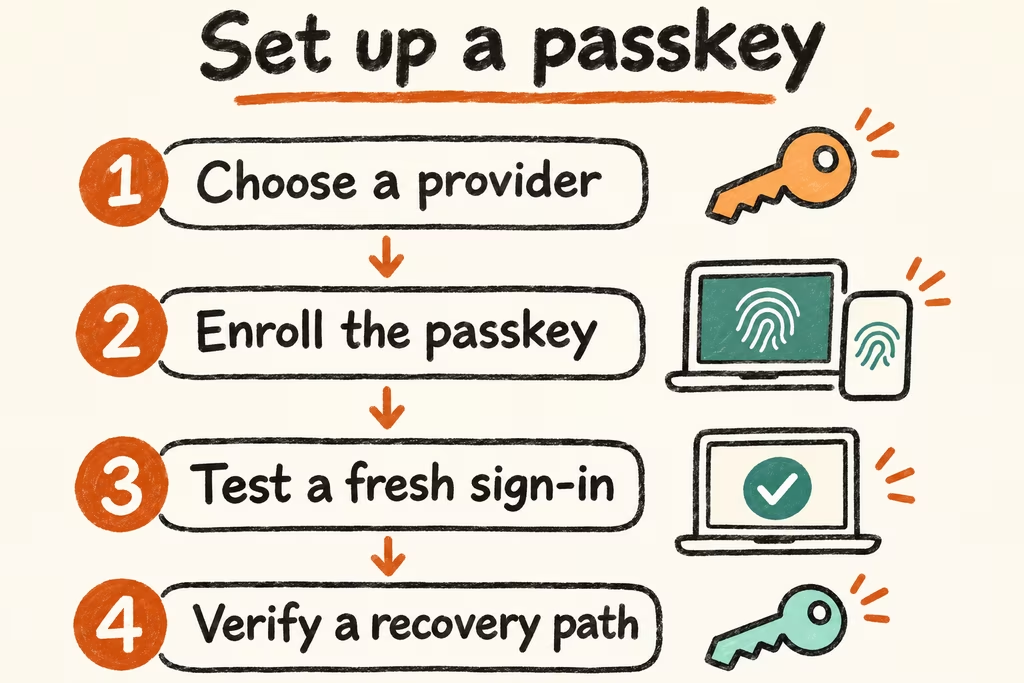
To set up a passkey, start in your site's signed-in security settings and choose the provider where you want to keep it. Test a fresh sign-in and add an independent recovery path before relying on it. With a lost device, try a synced copy or another enrolled credential first. If neither is available, follow the site's official recovery procedure.
What happens when you create and use a passkey?
During setup, a browser or app hands the registration request to a passkey provider. This can be the built-in credential manager, a password manager app or extension, or a security key. The service stores the public key. On sign-in, the provider uses the private key to sign a fresh challenge. You may verify yourself with the device PIN or biometrics, which stay on the device.
Read the prompt before saving so you know which provider accepted the request. A synced passkey becomes available on supported devices after you sign in to and unlock the same provider. A device-bound passkey stays on its original authenticator. When a site and the devices support cross-device sign-in, a nearby phone can approve a browser session through a sign-in QR prompt with a Bluetooth proximity check. That sign-in does not create a new passkey on the computer.
How to recover passkeys and sign in after a device change
Start with the account where you need access and identify who holds its credential. Provider recovery restores a synced credential when its requirements are met. Site-level recovery restores the account and lets you register a replacement when offered. A local-only passkey or a lost hardware key has no synced copy to retrieve. Another enrolled credential or the site's recovery process is then the practical route.
| Situation | First action | What to check |
|---|---|---|
| New device and original device still available | Set up and unlock the intended provider, then test a fresh sign-in | Keep the old device available until the passkey works on the replacement. |
| Passkey missing on this computer, nearby phone available | Start on the known site, choose its cross-device sign-in option if available, and confirm on your own phone | Check that both devices can use Bluetooth and that the phone has the expected credential. |
| Phone lost, synced copy or spare authenticator remains | Use the synced copy on another supported device or use the spare credential | Review active sessions and provider device access. Revoke credentials only when you know which registrations are affected. |
| Only device-bound copy lost | Follow the service's official recovery process | After regaining access, enroll and verify a replacement before removing the lost registration. If no recovery path exists, only the service can establish what options remain. |
What HN users ran into during recovery
In a thread about moving away from passwords, megiddo reported spending over a week regaining access after a laptop used for passkey sign-in died. The comment describes their setup and elapsed time. It gives a concrete reason to simulate losing the original machine before treating sync as your recovery plan.
In a different discussion about implementing passkeys, godelski reported a provider conflict where sign-in looked for credentials on a Mac instead of in Bitwarden. They described losing access to some accounts without another sign-in option. Rehearse selecting the intended provider on your second device and keep a backup that works even when the usual prompt selects the wrong place.
A four-step setup and recovery drill
- Use a disposable account you control. Keep its existing recovery path. Open security settings, add a passkey, and record the site, provider name, and whether it is synced or tied to one device.
- Open a fresh browser session on the first device and sign in with the new credential. On a second device, test the intended method, using sync, a separately registered key, or the site's nearby-phone option. Confirm you reached the same account.
- Set aside the first device without wiping it. Sign in on the second device using the backup route, confirm you can open security settings, and rehearse adding and then removing a separately enrolled test credential. Keep the working credentials intact.
- Adopt the setup when you can repeat ordinary sign-in and recovery within your preset time limit and can name the provider and backup route without guessing. Stop if the backup needs the missing device or both paths depend on a provider account you cannot recover.