 Knowledge Library
Decision in brief
Read the exact alert before starting. Try to reset your password from an eligible trusted device when the alert is for security reasons. Use Request Access for a locked or inactive Apple Account if Apple offers it. Follow the dedicated Media & Purchases reactivation path when only purchases are disabled.
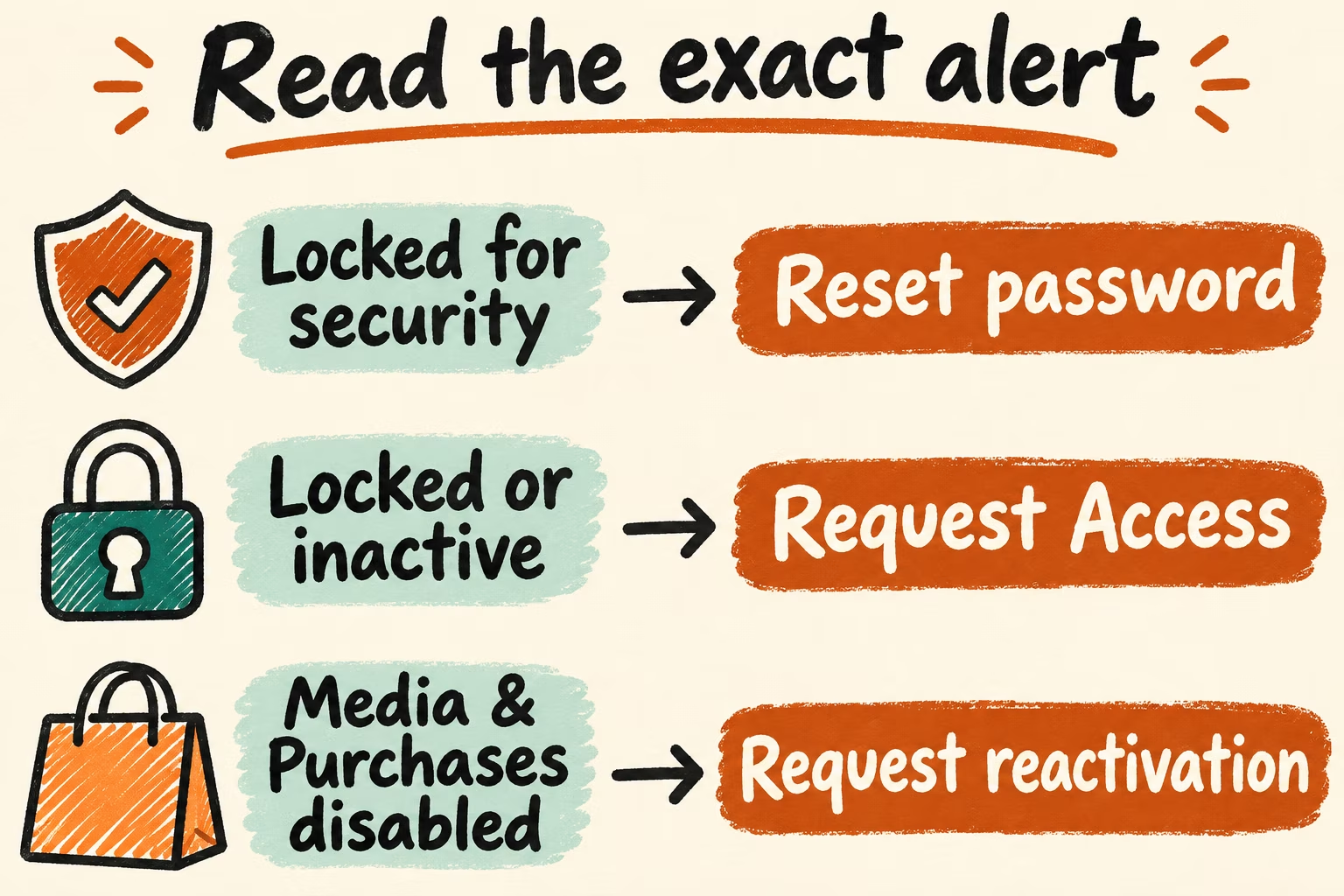
Route the message to the appropriate Apple support flow
Apple ID is now named Apple Account. A security lock, an account marked locked or not active, disabled purchases, and device Activation Lock can appear in different flows. Keep any working trusted device signed in while checking your options. Avoid erasing it as part of an initial diagnosis.
When you cannot reset your own password through the offered factors, Apple may offer account recovery. It can take several days or more, and Apple Support cannot shorten the wait. Apple gives different device-use instructions depending on where recovery began. Follow the instructions for your origin and operating system to avoid canceling the pending request.
| Alert or situation | Official path | What to verify |
|---|---|---|
| Locked or disabled for security reasons | Apple password reset, preferably on a trusted device | The reset completes and the expected account can sign into the services you need. |
| Apple Account locked or not active | Request Access from the alert or Apple's access-request flow | Track the submitted request and its result before starting another process. |
| Media & Purchases disabled | Continue on the alert or submit Apple's reactivation request | Confirm whether other Apple services still work and check purchase access after reactivation. |
| Cannot use the offered password reset factors | Use the official account recovery flow where available | Check the submitted request and expected time through the Apple channel that started it. |
Plan for what may be affected while you wait
In the first HN thread, parisidau described losing access to their Apple ID and initially finding no effective route back into the account. Treat this as an example of dependence on a single account. Check that access to essential documents has a backup independent of that account.
In a separate Ask HN thread, akg_67 reported a lock that blocked App Store updates during an account recovery wait. They described payment and banking apps depending on timely updates. Note which services need purchases or app updates and keep a legitimate backup channel for essential tasks.
Recover and verify one account without risking remaining access
- Record the alert text, the affected Apple service, and the current date. Confirm the correct account and which trusted devices or contact methods are available. Keep passwords, one-time codes and recovery keys out of your notes.
- Open Apple Support or the official reset flow yourself and follow the matching row. If a security alert asks for a reset, start with the authorized trusted device when it is available.
- If you submit account recovery, use Apple's status page and the original email or case to record the wait. Follow the device instructions for that specific request. Pause on unexplained requests for codes, credentials or remote access from anyone else.
- Treat access as restored only after sign-in succeeds and you confirm the affected service and trusted contact methods. If the access request is denied, the pending status changes unexpectedly or the alert is for Activation Lock, stop retrying and follow the specific Apple support path.